Pages

Thursday, 27 October 2016

View Hidden Password in Browser

In many places where you need to input your password to gain access, authorize or confirm a transaction, whenever you type passwords into the input text box, the characters automatically turns into asterisks or bullets. This is to protect your password from straying eyes.

However, in situations that require you to know what lies behind those asterisks, we’ve got a simple trick to reveal the passwords on your web browsers.


Open Accidentally Closed Tab In Google Chrome

There are two methods to open recently closed tabs in Google Chrome
Method 1: You could retrieve an accidentally closed tab by pressing Ctrl+Shift+T or right-clicking on the tab bar and clicking “Reopen closed tab”. A new tab will open and it will load the same page you recently closed accidently. If you press Ctrl+Shift+T again then it will open the second last closed tab. This shortcut also works in Firefox.

Method 2. You can also look for chrome history which is inbuilt feature of the browser. Press Ctrl+H or type chrome://history/ in the address bar (as shown in screenshot below) and it will display you all the tabs you opened previously.


Use Google Translate as a Proxy

Have you ever wanted to check your Facebook at school or at work but they block it? Well here is how to get past it with Google Translate..

Step 1Enter This URL but Don't Press Go!!

http://www.google.com/translate?langpair=ja|en&u=www.sitename.com

Step 2Change the www.sitename.com

Change this to whatever the site you wanna go to is. I.e
http://www.google.com/translate?langpair=ja|en&u=www.facebook.com

Step 3Why This Works?

This works because Google translate makes the page first into Japanese and then converts it back into English.

Step 4I Am Not Responsible.

If this gets you expelled or fired. k?

Step 5Enjoy XD!!!!

Explore Space

You can now soar throughout the night sky using Google Earth, zooming in on astronomical objects at their precise location in the heavens. Get an up-close and personal view of the planets, stars, nebulae and galaxies photographed by the Hubble Space Telescope with a few strokes of the keyboard.

Visit https://www.google.com/sky/

Use of Incognito Mode

When purchasing items on the internet (especially airline tickets), use incognito mode on your browser. The system uses your own cookies against you: raising the price on tickets the more times you check, as you shop around for better deals. That way you'll think the price is going up or that seats are being actively sold - thus increasing your urgency to buy, and punishing you for trying to get a good deal.

The point is that it's not enough to just shop around to different websites on your own computer anymore. You have to shop around with a clean browser, different browsers, different computers, change of IP, maybe try from work then RDP to your home computer or somebody on the other side of the country, etc. Also, always call the airline directly and check on the price - sometimes it's much cheaper.

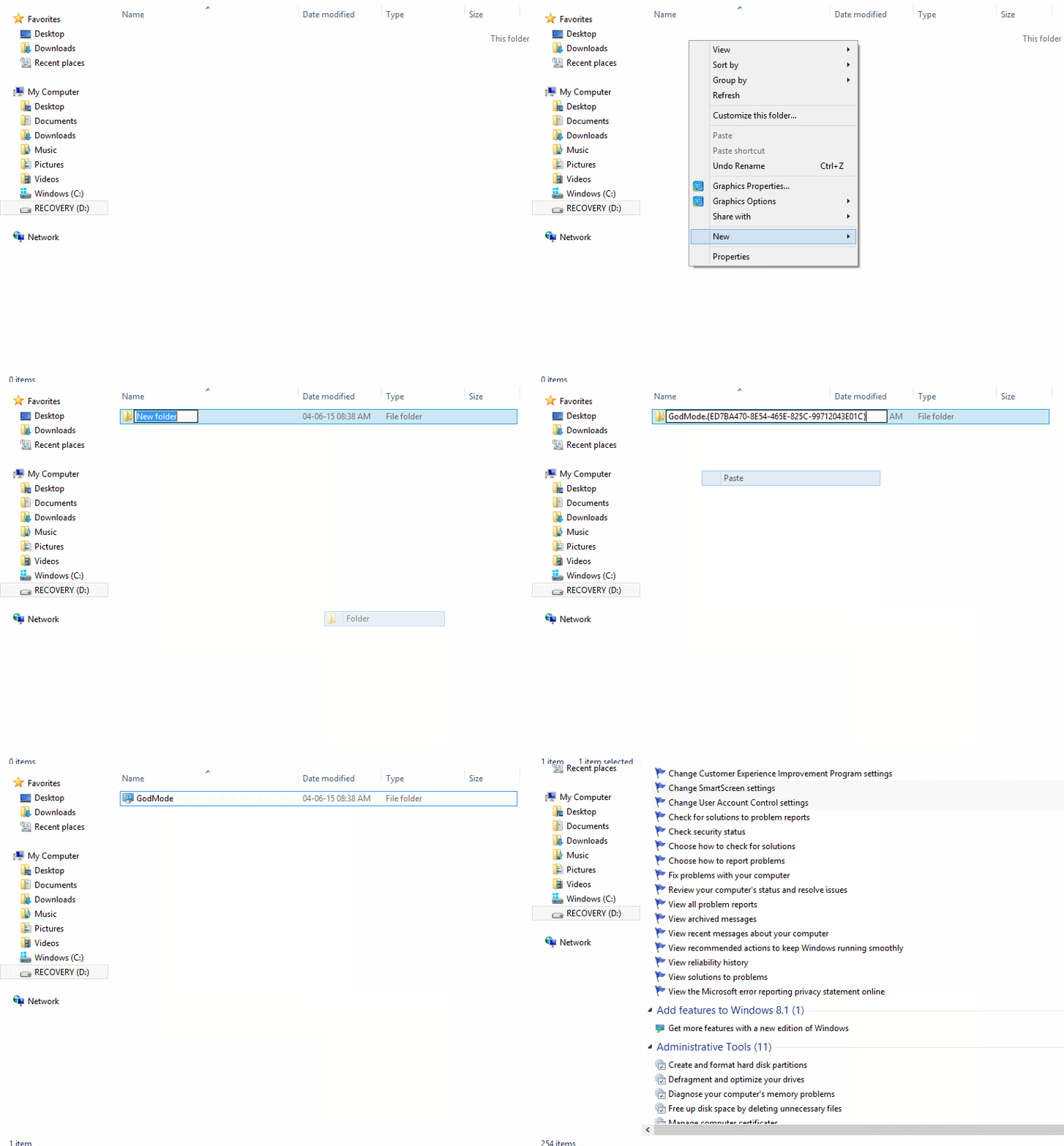
Accessing GodMode in Windows 7

Follow these steps to access GodMode:
  • Create a new folder wherever you want the GodMode folder to be. Right-click in Windows Explorer, select New, then click Folder. 

  • Next, rename the folder. You can name the folder anything you like as long as you add a period followed by this exact text string: {ED7BA470-8E54-465E-825C-99712043E01C} 

  • The folder icon should be replaced by the Control Panel icon, and the folder should now be filled with a variety of tweaks and tools

Comparative Analysis

Google Food Vs Food for comparative analysis


How to delete one word

Delete one word at One time by CTRL+ Backspace


Using Airport Wi-Fi

Use airport Wi-Fi by adding “?.jpg” at the end of any URL


Track Your Lost Android Phone Without Installed Tracking App

You can now simply ask Google to find it for you right from a web search.

Instead of going to the Android Device Manager website or app to find one of your other lost devices, you can now open up the main Google search page in your browser and type "find my phone" to get a top result of a map that will locate your phone, similar to the way you can use the main search box to see your upcoming flights and other personalized results.

You'll need to be logged in to your Google account for this to work

The search result will show your last-used device, but you can use the drop-down menu in the top-right corner to switch devices, and hit the "Ring" button in the bottom-left to ring the device and help you locate it.

You can't lock or erase the phone from this menu, though — you'll need to click the map to then be forwarded along to the proper Android Device Manager page to do those actions. Still, if you've simply misplaced your phone around the house — or hopefully just another nearby, known location — and can't find it, you're only a few seconds away from having it located and rang with a simple Google search. Anything to make it easier to get back to your phone is a good thing.

Read articles based on your Location

While Travelling Open http://en.wikipedia.org/wiki/Special:Nearby in your Phone to read articles based on your Location

Create a Book with Cool Index page

You can create a Book with Cool Index page and contents from a Wikipedia article

Play the Atari Breakout in Google Image Search

Getting bored for playing the same game again and again? Not interested in playing facebook online games or tired of looking at the same google image search?
Then, you have a reason to rejoice now! Yes, go to google image search and type

Atari Breakout

and enjoy playing the breakout game and get refreshed.

Bored Again

Search the words below in Google

  • do a barrel roll
  • tilt
  • Google in 1998
  • zerg rush
  • Pacman
  • blink html

Search "Do The Harlem Shake" On YouTube

This is what happens when you search “do the harlem shake” at YouTube.


Use your calculator for EMI calculation and many more stuff


Shift+Esc: Task manager in Google Chrome

There are several ways you can see the new task manager in Google Chrome (which helps you monitor your tabs and the overall memory performance for the pages you’re browsing).
You can:
  • Right-click in the title bar at the top of the Chrome window and select “Task manager” from the shortcut menu that appears.
  • Press Alt+Space to see that same shortcut menu, then use the up and down arrow keys until Task manager is highlighted, then press Enter.
  • Press Alt+Space, T
  • Or just press Shift+Esc.
To close the Task manager dialog box, simply hit Esc

Things You Can Do with a Middle Click on Your Mouse

In Your Browser


Your browser—whether it's Firefox, Chrome, or even Internet Explorer—makes better use of the middle mouse button than anything else. With it, you can:

  • Close a tab by middle-clicking on the tab

  • Open a link in a new tab by middle-clicking on the link (this also works in the address bar's drop-down menu and back and forward buttons)

  • Open all bookmarks in a folder at once by middle-clicking on the folder in your bookmarks bar

  • Enable auto-scroll by middle-clicking on a web page

  • Paste text in Firefox with a middle click, by enabling the middlemouse.paste option in about:config

  • You may be able to add more functionality to your browser with extensions, but these are the middle-click shortcuts built into most browsers.


Go Directly to the Task Manager Using Your Keyboard

Everyone knows how to open the task manager: press Control+Alt+Delete and click "Task Manager," right? For a faster way, press Control+Shift+Escape to launch the task manager directly, bypassing the menu and the mouse entirely.

To be fair, on Windows XP systems where the welcome screen is enabled, both shortcuts take you directly to the task manager. On any other Windows XP, Vista, or Windows 7 system, pressing Control+Alt+Delete will bring up a series of options, and the Task Manager is one of them.

How to quickly minimize all open windows except the active one

The trick is simple – just click on title bar of the window that you want to keep in the foreground, hold your mouse and shake it in either directions. All open windows, except the one you are holding, will now be minimized to the toolbar. 

This feature is known as Aero-Shake and is available in all editions of Windows 7 except Home Basic. The keyboard shortcut for Aero Shake is "Windows Logo Key + Home".

To restore all minimized Windows to their original location, just shake the active window again.