Pages

Showing posts with label Save Money on Computers (Basic Tutorial). Show all posts

Wednesday, 26 October 2016

Computer slows down

1. Close out all your running programs and delete all the files from the TEMP folder (directory). Nothing worth keeping should ever be stored in this folder. Click START-RUN, type %temp%, and click OK.
 
2. Clean out the TEMPORARY INTERNET FILES folder. From your browser go TOOLS-INTERNET OPTIONS and use the Delete Files option. 
 
3. Empty out the Recycle Bin.

A Super-Helpful Cheat-Sheet


Is the text you’re typing going over the previous text?

Press the “Insert” key.

Your browser is all over the screen and you can’t find anything?

Press F11, this takes it into, and out of, full screen mode.

Accidentally erased some text or even a file?

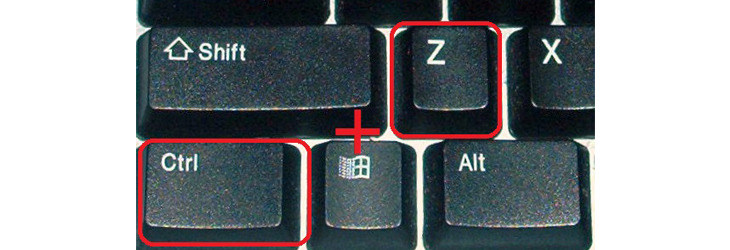
Click Ctrl + Z to go back in time and cancel your last action, whatever it was.

Desktop icons are a mess?

Right click and select “Arrange Icons”.

Taskbar moved?

Simply drag it down.

Is a menu command grayed out?

Push the “Esc” key 3 times. (This won't always work, as some commands are disabled during certain processes).

Can’t find a program or a file?

Click start, go to the search bar and type in its name.


Windows 8

Having difficulty exiting a program?

Hold the Alt button and press the F4 button.

Did you delete a file by accident?

Right click your recycle-bin, select “restore". 


My shoulders, forearms & wrists hurt

Find a better sitting position. Or take a break. This can be as simple as moving from your breakfast table to the couch or your desk, or it can be as complex as buying a new ergonomic chair and desk set. You will lose track of time while on the PC (or tablet), and extended computing can introduce repeated stress injuries. 

At the very least, get up and move around every couple of hours. Your digital life will still be there when you get back.

Nothing shows up on your screen

Check your display cable (both laptops and desktops) Cables can work themselves loose. Check both the connector on the computer, as well as the connection on the display.

If you have multiple monitors, check connections on each display. Sometimes if one comes loose, the others only show part of the Windows or Mac interface. For Laptops, check to make sure the display is set to output to the correct display (check the icons on your keyboard, but hitting Fn-F7 cycles through the settings on some laptops).

Tuesday, 25 October 2016

Problem: The screen is blank

Solution 1: The computer may be in Sleep mode. Click the mouse or press any key on the keyboard to wake it.

Solution 2: Make sure the monitor is plugged in and turned on.


Solution 3: Make sure the computer is plugged in and turned on.


Solution 4: If you're using a desktop, make sure the monitor cable is properly connected to the computer tower and the monitor

Problem: The sound isn't working

Solution 1: Check the volume level. Click the audio button in the top-right or bottom-right corner of the screen to make sure the sound is turned on and that the volume is up.

Solution 2: Check the audio player controls. Many audio and video players will have their own separate audio controls. Make sure the sound is turned on and that the volume is turned up in the player.

Solution 3: Check the cables. Make sure external speakers are plugged in, turned on, and connected to the correct audio port or a USB port. If your computer has color-coded ports, the audio output port will usually be green.

Solution 4: Connect headphones to the computer to find out if you can hear sound through the headphones.

Problem: The mouse or keyboard has stopped working

Solution 1: If you're using a wired mouse or keyboard, make sure it's correctly plugged into the computer.

Solution 2: If you're using a wireless mouse or keyboard, make sure it's turned on and that its batteries are charged.

Problem: The computer is frozen

Sometimes your computer may become completely unresponsive, or frozen. When this happens, you won't be able to click anywhere on the screen, open or close applications, or access shut-down options.
 
Solution 1 : Restart Windows Explorer. To do this, press and hold Ctrl+Alt+Delete on your keyboard to open the Task Manager. Next, locate and select Windows Explorer from the Processes tab and click Restart. You may need to click More Details at the bottom of the window to see the Processes tab.


Solution 3: Press and hold the Power button. The Power button is usually located on the front or side of the computer, typically indicated by the power symbol. Press and hold the Power button for 5 to 10 seconds to force the computer to shut down.

Solution 4: If the computer still won't shut down, you can unplug the power cable from the electrical outlet. If you're using a laptop, you may be able to remove the battery to force the computer to turn off. Note: This solution should be your last resort after trying the other suggestions above
 

Problem: All programs on the computer run slowly

Solution 1: Run a virus scanner. You may have malware running in the background that is slowing things down.

Solution 2: Your computer may be running out of hard drive space. Try deleting any files or programs you don't need


Problem: An application is frozen

Sometimes an application may become stuck, or frozen. When this happens, you won't be able to close the window or click any buttons within the application.

Solution 1: Force quit the application. On a PC, you can press (and hold) Ctrl+Alt+Delete (the Control, Alt, and Delete keys) on your keyboard to open the Task Manager. On a Mac, press and hold Command+Option+Esc. You can then select the unresponsive application and click End task (or Force Quit on a Mac) to close it.


Solution 2: Restart the computer. If you are unable to force quit an application, restarting your computer will close all open apps.

Problem: Power button will not start computer

Solution 1: If your computer does not start, begin by checking the power cord to confirm that it is plugged securely into the back of the computer case and the power outlet. 


Solution 2: If it is plugged into an outlet, make sure it is a working outlet. To check your outlet, you can plug in another electrical device, such as a lamp. 


Solution 3: If the computer is plugged in to a surge protector, verify that it is turned on. You may have to reset the surge protector by turning it off and then back on. You can also plug a lamp or other device into the surge protector to verify that it's working correctly.


Solution 4: If you are using a laptop, the battery may not be charged. Plug the AC adapter into the wall, then try to turn on the laptop. If it still doesn't start up, you may need to wait a few minutes and try again.